Openshift Single Node
This setup will deploy Single node Mosquitto broker and a Platform portal on a managed Openshift cluster using Helm charts. This deployment by default uses a Persistent volumes for persistence, and also deploys a service called mosquitto-loadbalancer to act as a connection endpoint. Platform pod is deployed as a deployment entity and mosquitto pod as statefuleset. This setup has been tested on Open source Openshift OKD cluster. However, feel free to deploy on your own Openshift infrastructure. Openshift offers lot of different features on top of Kubernetes. For details on Openshift and OKD you can refer to the Introduction page. For deploying a full fledged OKD cluster, you can follow the official Openshift OKD installation documentation. OKD can be mainly installed in two different fashion:
- IPI: Installer Provisioned Infrastructure
- UPI: User Provisioned Infrastructure
Installer Provisioned Infrastructure: Installer Provisioned Infrastructure (IPI) in OKD/OpenShift refers to a deployment model where the installation program provisions and manages all the components of the infrastructure needed to run the OpenShift cluster. This includes the creation of virtual machines, networking rules, load balancers, and storage components, among others. The installer uses cloud-specific APIs to automatically set up the infrastructure, making the process faster, more standardized, and less prone to human error compared to manually setting up the environment.
User Provisioned Infrastructure: User Provisioned Infrastructure (UPI) in OKD/OpenShift is a deployment model where users manually create and manage all the infrastructure components required to run the OpenShift cluster. This includes setting up virtual machines or physical servers, configuring networking, load balancers, storage, and any other necessary infrastructure components. Unlike the Installer Provisioned Infrastructure (IPI) model, where the installation program automatically creates and configures the infrastructure, UPI offers users complete control over the deployment process.
You are free to choose your own method among the two. You can also choose the cloud provider you want to deploy your solution on. Openshift OKD supports number of different cloud providers and also gives you an option to do bare-metal installation. In this deployment we went forward with UPI and deployed our infrastructure on Google Cloud Platform (GCP) using the Private cluster method mentioned here. Therefore, this solution is developed and tested on GCP, however it is unlikely that basic infrastructure would differ across different cloud providers.
A private cluster in GCP ensures that the nodes are isolated in a private network, reducing exposure to the public internet but again you are free to choose your own version of infrastructure supported by Openshift OKD. We will briefly discuss how the infrastructure looks like in our case so that you can have a reference for your own infrastructure.
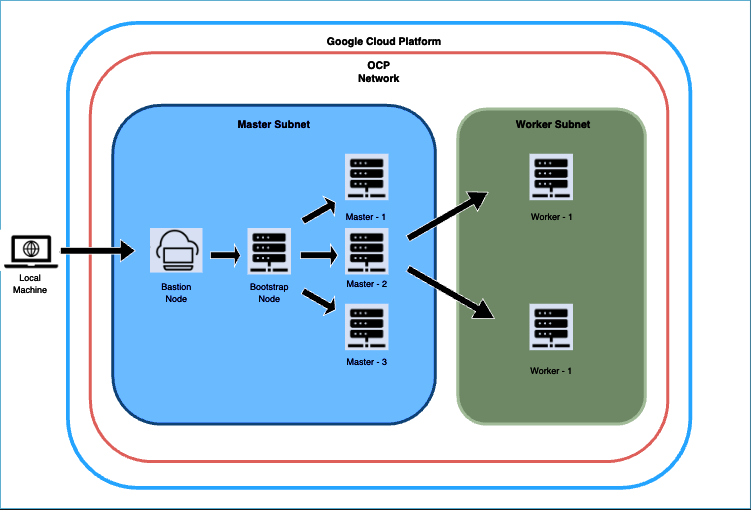
Figure 1: OKD Infrastructure on GCP during provisioning
The diagram depicts the deployment process for our OCP cluster on GCP, starting with the establishment of a bastion host. Bastion host is where we'll execute commands to configure the bootstrap node, then the Master nodes, and finally, the worker nodes in a separate subnet. Before initiating the bootstrap procedure, we set up the essential infrastructure components, including networks, subnetworks, an IAM service account, an IAM project, a Private DNS zone, Load balancers, Cloud NATs, and a Cloud Router.
Upon completing the bootstrap phase, we dismantled the bootstrap components from the cluster. Subsequently, we focussed on creating the worker nodes. After the worker nodes are operational, we set up a reverse proxy on the bastion host to facilitate local access to the OCP Console UI through our browser. To conclude, we confirm that all cluster operators are marked as ‘Available’. Once we done with the provisioning the architecture would look something like Figure 2. More detailed steps can be found in the official documentation. These discussed steps are all part of the official documentation.
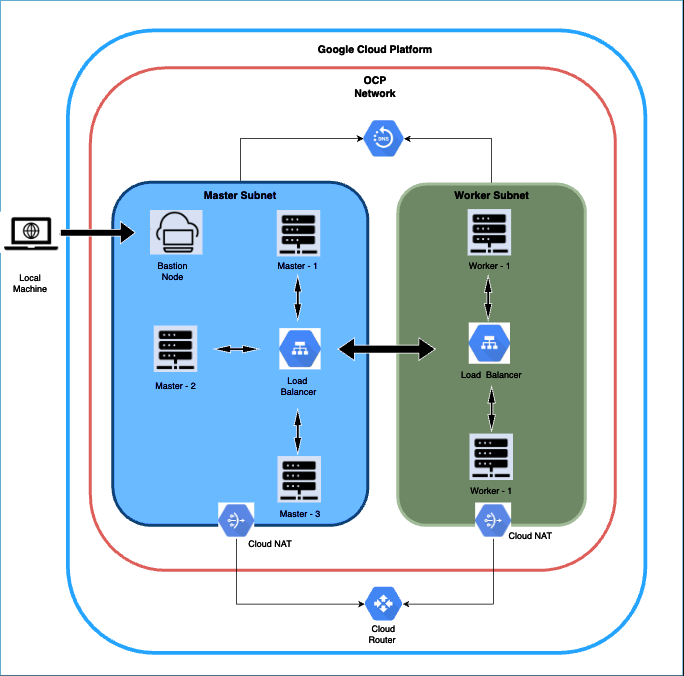
Figure 2: OKD Infrastructure on GCP post provisioning
Note: This deployment involves setting up a private cluster, which means access to the cluster is limited to through the bastion host. Consequently, we avoid using public DNS for this installation, relying solely on a private DNS zone. To facilitate access to the external UI, we will employ a reverse proxy for this purpose.
Openshift Cluster Setup and Configuration
Dependencies and Prerequisites
As we chose to use a private cluster, therefore master and worker nodes would not have access to the internet. Therefore, we will install the dependencies on the bastion node and would also deploy the application from the bastion node.
Prerequisites
Running Openshift cluster by following the official documentation guide of Openshift
Create a namespace
- Once you are connected to your Openshift setup and can access the cluster using
octool. Create a namespace in which you would want to deploy the application. The deployment folder is pre-configured for the namespace namedsinglenode. If you want to use the default configuration you can create a namespace namedsinglenodeusing the below command: oc create namespace singlenode- If you want to use a different namespace, use the command:
oc create namespace <your-custom-namespace>. Replace<your-custom-namespace>with the name of the namespace you want to configure.
- Once you are connected to your Openshift setup and can access the cluster using
On your bastion node: Check the allocated user id for your namespace after you already created your desired namespace. You can check the allocated user id for your namespace by running the command oc describe namespace <namespace> where <namespace> is the namespace you chose while creating the namespace. For default namespace i.e singlenode, the command would be oc describe namespace singlenode.
- The above command would output a response. A sample output could be like:
     Name:         singlenode
     Labels:       kubernetes.io/metadata.name=multinode
                   pod-security.kubernetes.io/audit=restricted
                   pod-security.kubernetes.io/audit-version=v1.24
                   pod-security.kubernetes.io/warn=restricted
                   pod-security.kubernetes.io/warn-version=v1.24
     Annotations:  openshift.io/sa.scc.mcs: s0:c27,c4
                   openshift.io/sa.scc.supplemental-groups: 1000710000/10000
                   openshift.io/sa.scc.uid-range: 1000710000/10000
     Status:       Active

     No resource quota.
     No LimitRange resource.
- Note down the value for
openshift.io/sa.scc.uid-range. The noted user id will now be used to install the helm chart. This user id needs to be propagated to the pods so that they could have adequate permissions while execution without needing additional security policy. After checking the environment prerequisites are set, follow we will prepare the Mosquitto environment:
Installation
Prerequisites:
- Openshift Cluster should be up and running. If you are yet to setup the cluster, refer Kubernetes Cluster Setup.
- You have successfully created the namespace
Once Openshift cluster is up and running then you can now follow these steps to install the Single node Mosquitto broker setup:
Installation using Helm Charts:
Helm charts offer a comprehensive solution for configuring various Kubernetes resources—including stateful sets, deployment templates, services, and service accounts—through a single command, streamlining the deployment process.When the user downloads helm package from the Platform license key is already part of the package.
Get the helm chart
- Make sure you have the helm chart
mosquitto-singlenode-openshift-3.0.0.tgz.
- Make sure you have the helm chart
Install Helm Chart:
- Use the following
helm installcommand to deploy the Mosquitto application on to your Kubernetes cluster. Replace<release-name>with the desired name for your Helm release and<namespace>with your chosen Kubernetes namespace:helm install <release-name> mosquitto-singlenode-openshift-3.0.0.tgz -n <namespace> --set runAsUser=<namespace-alloted-user-id> --set imageCredentials.registry=registry.cedalo.com --set imageCredentials.username=<username> --set imageCredentials.password=<password> --set imageCredentials.email=<email> namespace: Set it to the namespace of your deployment.imageCredentials.username: Your docker username provided by Cedalo team.imageCredentials.password: Your docker password provided by Cedalo team.imageCredentials.email: Registered e-mail for accessing docker registry.namespace-alloted-user-id: Set it to user id you noted throughoc describe namespace singlenodecommand.- Sample example: If your arbitrary release name is
sample-release-name, your user id for your namespace is1000710000,username,passwordandemailbedemo-username,demo-passwordanddemo@gmail.comthen your helm installation command should be:helm install sample-release-name mosquitto-singlenode-openshift-3.0.0.tgz -n singlenode --set runAsUser=1000710000 --set imageCredentials.registry=registry.cedalo.com --set imageCredentials.username=demo-username --set imageCredentials.password=demo-password --set imageCredentials.email=demo@gmail.com
- Use the following
You can monitor the running pods using the
oc get pods -o wide -n <namespace>command. To observe the opened ports useoc get svc -n <namespace>.To uninstall the setup:
helm uninstall <release-name> -n <namespace>
Your Mosquitto setup is now running with a single mosquitto nodes and the Platform portal.
Further Useful Commands
- If you want to change mosquitto.conf, you can do so by uncompressing the helm chart, making the required changes and packaging the helm charts again. The detailed procedure is mentioned below:
tar -xzvf mosquitto-singlenode-openshift-3.0.0.tgzcd mosquitto-singlenode-openshift-3.0.0/files/- Make changes to
mosquitto.confand save it. - Go back to the parent directory:
cd ../ - Package the helm chart to its original form using:
helm package mosquitto-singlenode-openshift-3.0.0 - Uninstall helm package
helm uninstall <release-name> -n <namespace> - Reinstall the helm package using the same
helm installcommand you used the first time or do ahelm upgrade.
- You can similarly change any other configuration like
sql-bridgeconfiguration, repackage the helm chart and install to bring changes into effect.
- If you want to change mosquitto.conf, you can do so by uncompressing the helm chart, making the required changes and packaging the helm charts again. The detailed procedure is mentioned below:
Connect to Broker
Once your setup is ready, you can access the mosquitto brokers using the external ip of the mosquitto service.
Go to the Client Account menu on the Platform portal and create a new client to connect from. Make sure to assign a role, like the default "client" role, to allow your client to publish and/or subscribe to topics.
Now you can connect to the Mosquitto cluster. You can access it either with connecting it directly to worker node running the haproxy pod along with a service exposed at port 1883:
To get the external ip of Mosquitto service:
kubectl get service mosquitto-loadbalancer -n <namespace>
In this example command we use Mosquitto Sub to subscribe onto all topics:
mosquitto_sub -h <external-ip-of-mosquitto-loadbalancer> -p 1883 -u <username> -P <password> -t '#'
Make sure to replace your IP, username and password.