Openshift Single Node
This setup will deploy Single node Mosquitto broker and a Platform portal on a managed Openshift cluster using Helm charts. This deployment by default uses a Persistent volumes for persistence, and also deploys a service called mosquitto-loadbalancer to act as a connection endpoint. Platform pod is deployed as a deployment entity and mosquitto pod as statefuleset. This setup has been tested on Open source Openshift OKD cluster. However, feel free to deploy on your own Openshift infrastructure. Openshift offers lot of different features on top of Kubernetes. For details on Openshift and OKD you can refer to the Introduction page. For deploying a full fledged OKD cluster, you can follow the official Openshift OKD installation documentation. OKD can be mainly installed in two different fashion:
- IPI: Installer Provisioned Infrastructure
- UPI: User Provisioned Infrastructure
Installer Provisioned Infrastructure: Installer Provisioned Infrastructure (IPI) in OKD/OpenShift refers to a deployment model where the installation program provisions and manages all the components of the infrastructure needed to run the OpenShift cluster. This includes the creation of virtual machines, networking rules, load balancers, and storage components, among others. The installer uses cloud-specific APIs to automatically set up the infrastructure, making the process faster, more standardized, and less prone to human error compared to manually setting up the environment.
User Provisioned Infrastructure: User Provisioned Infrastructure (UPI) in OKD/OpenShift is a deployment model where users manually create and manage all the infrastructure components required to run the OpenShift cluster. This includes setting up virtual machines or physical servers, configuring networking, load balancers, storage, and any other necessary infrastructure components. Unlike the Installer Provisioned Infrastructure (IPI) model, where the installation program automatically creates and configures the infrastructure, UPI offers users complete control over the deployment process.
You are free to choose your own method among the two. You can also choose the cloud provider you want to deploy your solution on. Openshift OKD supports number of different cloud providers and also gives you an option to do bare-metal installation. In this deployment we went forward with UPI and deployed our infrastructure on Google Cloud Platform (GCP) using the Private cluster method mentioned here. Therefore, this solution is developed and tested on GCP, however it is unlikely that basic infrastructure would differ across different cloud providers.
A private cluster in GCP ensures that the nodes are isolated in a private network, reducing exposure to the public internet but again you are free to choose your own version of infrastructure supported by Openshift OKD. We will briefly discuss how the infrastructure looks like in our case so that you can have a reference for your own infrastructure.
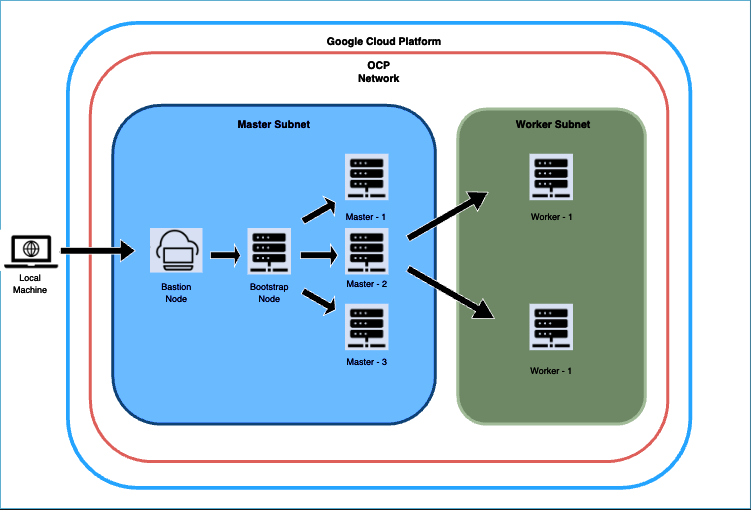
Figure 1: OKD Infrastructure on GCP during provisioning
The diagram depicts the deployment process for our OCP cluster on GCP, starting with the establishment of a bastion host. Bastion host is where we'll execute commands to configure the bootstrap node, then the Master nodes, and finally, the worker nodes in a separate subnet. Before initiating the bootstrap procedure, we set up the essential infrastructure components, including networks, subnetworks, an IAM service account, an IAM project, a Private DNS zone, Load balancers, Cloud NATs, and a Cloud Router.
Upon completing the bootstrap phase, we dismantled the bootstrap components from the cluster. Subsequently, we focussed on creating the worker nodes. After the worker nodes are operational, we set up a reverse proxy on the bastion host to facilitate local access to the OCP Console UI through our browser. To conclude, we confirm that all cluster operators are marked as ‘Available’. Once we done with the provisioning the architecture would look something like Figure 2. More detailed steps can be found in the official documentation. These discussed steps are all part of the official documentation.
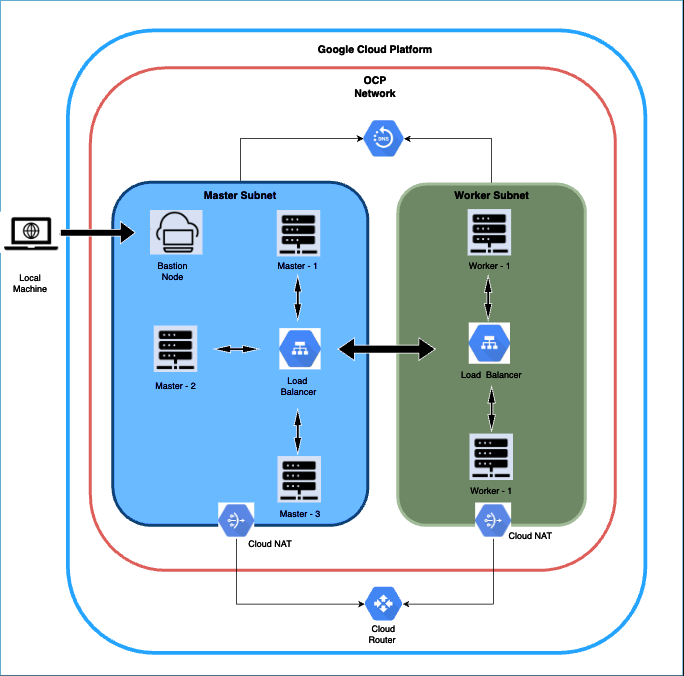
Figure 2: OKD Infrastructure on GCP post provisioning
Note: This deployment involves setting up a private cluster, which means access to the cluster is limited to through the bastion host. Consequently, we avoid using public DNS for this installation, relying solely on a private DNS zone. To facilitate access to the external UI, we will employ a reverse proxy for this purpose.
Openshift Cluster Setup and Configuration
Dependencies and Prerequisites
As we chose to use a private cluster, therefore master and worker nodes would not have access to the internet. Therefore, we will install the dependencies on the bastion node and would also deploy the application from the bastion node.
Prerequisites
Running Openshift cluster by following the official documentation guide of Openshift
Create a namespace
- Once you are connected to your Openshift setup and can access the cluster using
octool. Create a namespace in which you would want to deploy the application. The deployment folder is pre-configured for the namespace namedsinglenode. If you want to use the default configuration you can create a namespace namedsinglenodeusing the below command: oc create namespace singlenode- If you want to use a different namespace, use the command:
oc create namespace <your-custom-namespace>. Replace<your-custom-namespace>with the name of the namespace you want to configure.
- Once you are connected to your Openshift setup and can access the cluster using
On your bastion node: Check the allocated user id for your namespace after you already created your desired namespace. You can check the allocated user id for your namespace by running the command oc describe namespace <namespace> where <namespace> is the namespace you chose while creating the namespace. For default namespace i.e singlenode, the command would be oc describe namespace singlenode.
The above command would output a response. A sample output could be like:
     Name:         singlenode
     Labels:       kubernetes.io/metadata.name=multinode
                   pod-security.kubernetes.io/audit=restricted
                   pod-security.kubernetes.io/audit-version=v1.24
                   pod-security.kubernetes.io/warn=restricted
                   pod-security.kubernetes.io/warn-version=v1.24
     Annotations:  openshift.io/sa.scc.mcs: s0:c27,c4
                   openshift.io/sa.scc.supplemental-groups: 1000710000/10000
                   openshift.io/sa.scc.uid-range: 1000710000/10000
     Status:       Active

     No resource quota.
No LimitRange resource.- Note down the value for
openshift.io/sa.scc.uid-range. The noted user id will now be used to install the helm chart. This user id needs to be propagated to the pods so that they could have adequate permissions while execution without needing additional security policy. After checking the environment prerequisites are set, follow we will prepare the Mosquitto environment:
- Note down the value for
Installation
Prerequisites:
- Openshift Cluster should be up and running. If you are yet to setup the cluster, refer Kubernetes Cluster Setup.
- You have successfully created the namespace
Once Openshift cluster is up and running then you can now follow these steps to install the Single node Mosquitto broker setup:
Installation using Helm Charts:
Helm charts offer a comprehensive solution for configuring various Kubernetes resources—including stateful sets, deployment templates, services, and service accounts—through a single command, streamlining the deployment process.When the user downloads helm package from the Platform license key is already part of the package.
Get and extract the helm chart
- Download
mosquitto-3.2-platform-3.2-openshift-sn.zipfrom the Platform portal. - Extract the archive to obtain the
mosquitto-3.2-platform-3.2-openshift-snchart directory (for example on Linux or macOS:unzip mosquitto-3.2-platform-3.2-openshift-sn.zip). - Run Helm from the host that can reach the cluster API (for example a bastion node); the exact path to the chart depends on where you place the zip and extract it.
- Download
Install Helm Chart:
From the directory that contains the extracted
mosquitto-3.2-platform-3.2-openshift-snfolder, use the followinghelm installcommand to deploy the Mosquitto application on to your OpenShift cluster. Replace<release-name>with the desired name for your Helm release and<namespace>with your chosen OpenShift namespace:helm install <release-name> ./mosquitto-3.2-platform-3.2-openshift-sn -n <namespace> \
--set mosquitto.securityContext.runAsUser=<namespace-alloted-user-id> \
--set platform.securityContext.runAsUser=<namespace-alloted-user-id> \
--set init.securityContext.runAsUser=<namespace-alloted-userid>Required Parameters:
--set licenseKey=<your-license-key>: Your Cedalo Mosquitto license key (required)--set nameserver=<dns-server-ip>: DNS server IP address for name resolution (e.g.,10.0.0.10)--set mosquitto.securityContext.runAsUser=<namespace-alloted-user-id>: User ID fromoc describe namespace <namespace>--set platform.securityContext.runAsUser=<namespace-alloted-user-id>: User ID fromoc describe namespace <namespace>--set init.securityContext.runAsUser=<namespace-alloted-userid>: User ID fromoc describe namespace <namespace>
Common Configuration Options:
--set storageClass=<storage-class-name>: Storage class for persistent volumes. Default:standard-rwo. Common values:- GCP:
standard-rwo,premium-rwo - AWS:
gp2,gp3,io1 - Azure:
managed,managed-premium
- GCP:
--set mosquitto.serviceType=<serviceType>: Service type for MQTT broker. Options:NodePort(default),LoadBalancer, orClusterIP--set platform.serviceType=<serviceType>: Service type for Platform UI. Options:NodePort(default),LoadBalancer, orClusterIP--set mosquitto.pullPolicy=<pullPolicy>: Image pull policy. Default:Always. Options:Always,IfNotPresent,Never--set imagePullSecrets[0].name=<secret-name>: Image pull secret for private registries. Default:mosquitto-pro-secret
Storage Configuration:
--set mosquitto.persistentStorageCapacity=<size>: Storage size for Mosquitto data. Default:1Gi--set platform.persistentStorageCapacity=<size>: Storage size for Platform data. Default:1Gi--set platform.persistentLogStorageCapacity=<size>: Storage size for Platform logs. Default:1Gi
Resource Configuration:
--set mosquitto.resources.requests.cpu=<cpu>: Mosquitto CPU request. Default:200m--set mosquitto.resources.requests.memory=<memory>: Mosquitto memory request. Default:512Mi--set platform.resources.requests.cpu=<cpu>: Platform CPU request. Default:200m--set platform.resources.requests.memory=<memory>: Platform memory request. Default:512Mi
Sample Installation Command:
helm install sample-release ./mosquitto-3.2-platform-3.2-openshift-sn -n singlenode \
  --set licenseKey=<your-license-key> \
  --set nameserver=10.0.0.10 \
  --set mosquitto.securityContext.runAsUser=1000710000 \
  --set platform.securityContext.runAsUser=1000710000 \
  --set init.securityContext.runAsUser=1000710000 \
  --set storageClass=standard-rwo \
  --set mosquitto.serviceType=NodePort \
  --set platform.serviceType=NodePort
Note: You can explore further configuration options in
values.yaml
You can monitor the running pods using the
oc get pods -o wide -n <namespace>command. To observe the opened ports useoc get svc -n <namespace>.To uninstall the setup:
helm uninstall <release-name> -n <namespace>
Your Mosquitto setup is now running with a single mosquitto node and the Platform portal.
Managing Mosquitto Dynsec Password
When you download and extract the Helm chart package from the Platform portal, the mosquittoDynsecPassword field in values.yaml is automatically populated with a password. This password is critical for Mosquitto's dynamic security plugin and must be managed securely.
First-Time Setup
Extract and Store the Password:
- After downloading and extracting the Helm chart, open
values.yamlin the chart directory and locate themosquittoDynsecPasswordfield - Copy the password value and store it securely (e.g., password manager, encrypted storage)
- IMPORTANT: Remove the
mosquittoDynsecPasswordfield fromvalues.yamlbefore committing to version control
- After downloading and extracting the Helm chart, open
Create a Kubernetes Secret:
You have two options for creating the secret:
Option A: Create Secret Externally (Recommended)
oc create secret generic mosquitto-dynsec-password -n <namespace> \
  --from-literal=password=<your-password>
Then set in
values.yaml:dynsec:
createSecret: false # Use external secret
secretName: "mosquitto-dynsec-password"
passwordKey: "password"Option B: Create Secret via Helm
dynsec:
  createSecret: true  # Create secret via Helm
  secretName: "mosquitto-dynsec-password"
  passwordKey: "password"
  passwordContent: "<base64-encoded-password>"  # echo -n "your-password" | base64
Important Security Notes:
- Never commit the password to git repositories
- Always use the same password you used the first time when upgrading or reinstalling with Helm charts
- If you download a newer Helm chart with a different password, replace it with your original password to prevent "not authorized" errors
- The secret is referenced internally by the Helm chart - you don't need to manually configure it in deployments
Updating the Password
If you need to change the password:
Update the Kubernetes secret:
oc create secret generic mosquitto-dynsec-password -n <namespace> \
  --from-literal=password=<new-password> \
  --dry-run=client -o yaml | oc apply -f -
Restart the Mosquitto pods to pick up the new password:
oc rollout restart statefulset/mosquitto -n <namespace>
Advanced Configuration
Configurable Mosquitto Broker Settings
The Helm chart provides extensive configuration options for the Mosquitto broker through values.yaml. You can customize various aspects of the broker behavior without manually editing configuration files.
Mosquitto Configuration Options
Basic Configuration:
--set mosquitto.config.allowAnonymous=<true|false>: Allow unauthenticated access. Default:true(for SN)--set mosquitto.config.enableWebsockets=<true|false>: Enable websockets listener. Default:false--set mosquitto.config.websocketsPort=<port>: Websockets listener port. Default:8090--set mosquitto.config.persistenceLocation=<path>: Location for persistent data. Default:"/mosquitto/data/"
TLS Configuration:
Server-Only TLS (One-way TLS):
--set mosquitto.serverOnlyTls.enabled=true: Enable server-only TLS listener on port 8883. Default:false--set mosquitto.serverOnlyTls.secretName=<secret-name>: Name of the Secret containing server TLS certificates. Default:mosquitto-server-tls--set mosquitto.serverOnlyTls.createSecret=false: Set tofalseif creating secrets externally (recommended). Default:true--set mosquitto.serverOnlyTls.certFile=<filename>: Certificate file name in Secret. Default:server.crt--set mosquitto.serverOnlyTls.keyFile=<filename>: Private key file name in Secret. Default:server.key--set mosquitto.serverOnlyTls.tlsMountPath=<path>: Directory path for mounted certificates. Default:/mosquitto/certs--set mosquitto.serverOnlyTls.certName=<filename>: Certificate filename when mounted. Default:server.crt--set mosquitto.serverOnlyTls.keyName=<filename>: Private key filename when mounted. Default:server.key
mTLS (Mutual TLS - Two-way TLS):
--set mosquitto.mtls.enabled=true: Enable mTLS listener on port 8883. Default:false--set mosquitto.mtls.secretName=<secret-name>: Name of the Secret containing server TLS certificates for mTLS. Default:mosquitto-mtls-server-tls--set mosquitto.mtls.createSecret=false: Set tofalseif creating secrets externally (recommended). Default:true--set mosquitto.mtls.certFile=<filename>: Certificate file name in Secret. Default:server.pem--set mosquitto.mtls.keyFile=<filename>: Private key file name in Secret. Default:server.key--set mosquitto.mtls.clientCaSecretName=<secret-name>: Name of the Secret containing client CA certificates (must be created externally). Default:mosquitto-client-ca--set mosquitto.mtls.caMountPath=<path>: Directory path for client CA certificates (capath). Default:/mosquitto/config/capath_mqtts--set mosquitto.mtls.requireCertificate=<true|false>: Require clients to present valid certificates. Default:true--set mosquitto.mtls.useIdentityAsUsername=<true|false>: Use certificate CN as username. Default:false--set mosquitto.mtls.tlsVersion=<version>: Minimum TLS version (e.g.,tlsv1.2,tlsv1.3). Default:""(uses Mosquitto default)
Note: All secret names and paths mentioned above are default values and can be customized via Helm values. Certificates can be created externally using oc create secret commands. For detailed TLS configuration, see the Server Certificates and mTLS documentation.
Queue Management:
--set mosquitto.config.maxQueuedMessages=<number>: Maximum queued messages per client. Default:1000--set mosquitto.config.maxPersistQueuedMessages=<number>: Maximum persistent queued messages per client. Default:1000000
Control and Logging:
--set mosquitto.config.enableControlApi=<true|false>: Enable broker control API. Default:true
Plugin Configuration
Authentication and Security:
--set mosquitto.config.plugins.dynamicSecurity.enabled=<true|false>: Enable dynamic security plugin. Default:true(for SN)--set mosquitto.config.plugins.ldap.enabled=<true|false>: Enable LDAP authentication. Default:false--set mosquitto.config.plugins.jwt.enabled=<true|false>: Enable JWT authentication. Default:false
Persistence:
--set mosquitto.config.plugins.persistence.sqlite.enabled=<true|false>: Enable SQLite persistence. Default:true(for SN)--set mosquitto.config.plugins.persistence.lmdb.enabled=<true|false>: Enable LMDB persistence. Default:false
Bridge Plugins:
--set mosquitto.config.plugins.httpBridge.enabled=<true|false>: Enable HTTP bridge plugin. Default:false--set mosquitto.config.plugins.mongodbBridge.enabled=<true|false>: Enable MongoDB bridge plugin. Default:false--set mosquitto.config.plugins.kafkaBridge.enabled=<true|false>: Enable Kafka bridge plugin. Default:false--set mosquitto.config.plugins.sqlBridge.enabled=<true|false>: Enable SQL bridge plugin. Default:false--set mosquitto.config.plugins.influxdbBridge.enabled=<true|false>: Enable InfluxDB bridge plugin. Default:false
Metrics and Monitoring:
--set mosquitto.config.plugins.prometheusMetrics.enabled=<true|false>: Enable Prometheus metrics plugin. Default:false--set mosquitto.config.plugins.prometheusMetrics.port=<port>: Prometheus metrics port. Default:8000--set mosquitto.config.plugins.prometheusMetrics.updateInterval=<seconds>: Update interval. Default:15--set mosquitto.config.plugins.influxdbMetrics.enabled=<true|false>: Enable InfluxDB metrics plugin. Default:false
Complete Example with Custom Configuration
helm install custom-mosquitto ./mosquitto-3.2-platform-3.2-openshift-sn -n singlenode \
  --set licenseKey=<your-license-key> \
  --set nameserver=10.0.0.10 \
  --set mosquitto.securityContext.runAsUser=1000710000 \
  --set platform.securityContext.runAsUser=1000710000 \
  --set init.securityContext.runAsUser=1000710000 \
  --set storageClass=standard-rwo \
  --set mosquitto.serviceType=NodePort \
  --set platform.serviceType=NodePort \
  --set mosquitto.serverOnlyTls.enabled=true \
  --set mosquitto.serverOnlyTls.createSecret=false \
  --set mosquitto.config.enableWebsockets=true \
  --set mosquitto.config.plugins.prometheusMetrics.enabled=true \
  --set mosquitto.config.plugins.prometheusMetrics.port=8000 \
  --set mosquitto.resources.requests.cpu=300m \
  --set mosquitto.resources.requests.memory=1Gi
Updating Configuration After Installation
To update your Mosquitto configuration after installation:
Using Helm Upgrade:
helm upgrade <release-name> ./mosquitto-3.2-platform-3.2-openshift-sn -n <namespace> \
  --reuse-values \
  --set mosquitto.serverOnlyTls.enabled=true \
  --set mosquitto.serverOnlyTls.createSecret=false \
  --set mosquitto.config.plugins.prometheusMetrics.enabled=true
Verify Configuration:
# Check if pods are restarting with new configuration
oc get pods -n <namespace> -w

# Verify configuration in running pod
oc exec -it <mosquitto-pod> -n <namespace> -- cat /mosquitto/config/mosquitto.conf
Prometheus Monitoring Integration
Prerequisites
- Prometheus Operator: Your cluster must have Prometheus Operator installed
- ServiceMonitor CRD: Verify with
oc get crd servicemonitors.monitoring.coreos.com
Configuration Options
Enable Prometheus Monitoring:
helm install <release-name> ./mosquitto-3.2-platform-3.2-openshift-sn -n <namespace> \
  --set licenseKey=<your-license-key> \
  --set nameserver=10.0.0.10 \
  --set mosquitto.securityContext.runAsUser=<user-id> \
  --set platform.securityContext.runAsUser=<user-id> \
  --set init.securityContext.runAsUser=<user-id> \
  --set prometheus.enabled=true \
  --set mosquitto.config.plugins.prometheusMetrics.enabled=true \
  --set mosquitto.config.plugins.prometheusMetrics.port=8000
Key Configuration Parameters:
--set prometheus.enabled=true: Enable Prometheus monitoring--set prometheus.serviceMonitor.enabled=true: Create ServiceMonitor resource--set prometheus.serviceMonitor.interval=<interval>: Scrape interval (default:30s)--set prometheus.serviceMonitor.scrapeTimeout=<timeout>: Scrape timeout (default:10s)--set mosquitto.config.plugins.prometheusMetrics.enabled=true: Enable metrics plugin--set mosquitto.config.plugins.prometheusMetrics.port=<port>: Metrics port (default:8000)
Verifying Prometheus Integration
# Check ServiceMonitor is created
oc get servicemonitor -n <namespace>

# Check metrics endpoint
oc port-forward svc/mosquitto-loadbalancer 8000:8000 -n <namespace>
curl http://localhost:8000/metrics
Troubleshooting
- ServiceMonitor not found: Ensure Prometheus Operator is running and has RBAC permissions
- No metrics: Verify
mosquitto.config.plugins.prometheusMetrics.enabled=true - Connection refused: Check if metrics port is exposed in service
Access the metrics endpoint at: http://<mosquitto-service>:8000/metrics
NetworkPolicy Security (Optional)
For enhanced security, you can enable NetworkPolicies to control traffic flow between pods. This restricts network access to only necessary connections.
Prerequisites
- CNI Plugin: Your cluster must support NetworkPolicies (Calico, Cilium, Weave Net, etc.)
- NetworkPolicy Support: Verify with
kubectl get crd networkpolicies.networking.k8s.io
Enable NetworkPolicies
Add the following to your Helm installation:
--set networkPolicy.enabled=true
DNS Configuration (Configurable)
NetworkPolicies require DNS resolution to work properly. The Helm chart includes configurable DNS settings that automatically adapt to different cluster environments:
Default Configuration (OpenShift)
networkPolicy:
  enabled: true
  dns:
    namespace: "openshift-dns"
    podSelector:
      key: "dns.operator.openshift.io/daemonset-dns"
      value: "default"
    ports:
      udp: 5353
      tcp: 5353
Custom DNS Configuration
For non-standard clusters, you can customize DNS settings:
helm install mosquitto-sn . -n <namespace> \
  --set networkPolicy.enabled=true \
  --set networkPolicy.dns.namespace=<dns-namespace> \
  --set networkPolicy.dns.podSelector.key=<selector-key> \
  --set networkPolicy.dns.podSelector.value=<selector-value> \
  --set networkPolicy.dns.ports.udp=<dns-udp-port> \
  --set networkPolicy.dns.ports.tcp=<dns-tcp-port>
Detect DNS Configuration
Use these commands to find your cluster's DNS configuration:
# Find DNS namespace
kubectl get pods --all-namespaces | grep -E 'dns|core-dns'

# Find DNS pod labels
kubectl get pods -n openshift-dns --show-labels | grep dns
kubectl get pods -n kube-system --show-labels | grep -E 'dns|coredns'

# Find DNS service ports
kubectl describe svc dns-default -n openshift-dns | grep -A 5 "Port:"
What NetworkPolicies Control
The Helm chart creates 3 NetworkPolicy resources:
- Mosquitto NetworkPolicy: Controls external MQTT access (1883/8883), Platform communication (1885, 1883/8883), and Prometheus metrics (8000)
- Platform NetworkPolicy: Controls web UI access (3000/443) and Mosquitto communication
- Image Registry Policy: Permits image pulls from
registry.cedalo.com
Verification
# Check NetworkPolicies are created
kubectl get networkpolicies -n <namespace>

# Test connectivity (should work normally)
kubectl exec -it <mosquitto-pod> -- mosquitto_pub -h localhost -t test -m "hello"

# Test DNS resolution from platform pod
kubectl exec -it <platform-pod> -- nslookup mosquitto-0.mosquitto.ha.svc.cluster.local
Important Notes
- Default Behavior: Without NetworkPolicies, all pods can communicate freely
- CNI Requirement: NetworkPolicies only work with compatible CNI plugins
- DNS Dependency: NetworkPolicies require proper DNS configuration for service discovery
- OpenShift DNS: Uses port 5353 instead of standard port 53
- Troubleshooting: If connectivity issues occur, disable with
--set networkPolicy.enabled=false
For detailed NetworkPolicy documentation, see the NETWORK-POLICY.md file in the Helm chart directory.
Connect to Broker
Once your setup is ready, you can access the mosquitto brokers using the external ip of the mosquitto service.
Go to the Client Account menu on the Platform portal and create a new client to connect from. Make sure to assign a role, like the default "client" role, to allow your client to publish and/or subscribe to topics.
Now you can connect to the Mosquitto cluster. You can access it either with connecting it directly to worker node running the haproxy pod along with a service exposed at port 1883:
To get the external ip of Mosquitto service:
kubectl get service mosquitto-loadbalancer -n <namespace>
In this example command we use Mosquitto Sub to subscribe onto all topics:
mosquitto_sub -h <external-ip-of-mosquitto-loadbalancer> -p 1883 -u <username> -P <password> -t '#'
Make sure to replace your IP, username and password.