Docker Single Node
The following is a step-by-step tutorial to guide you through the installation process of Pro Edition for Eclipse Mosquitto Docker. The tutorial assumes you have downloaded the Mosquitto Installer from us and have a valid license to work with. You can get a trial license by setting up an account on our website www.cedalo.com.
Install Docker Environment
To run Cedalo Docker products, you need an installed version of docker and docker compose. Docker is not system dependent and can be installed on Windows, Mac or Linux. Please see more information about docker and usage specifications on their website.
Open the following link and install Docker. If you have not installed a version of docker desktop and only installed the docker engine, make sure to further install Docker Compose.
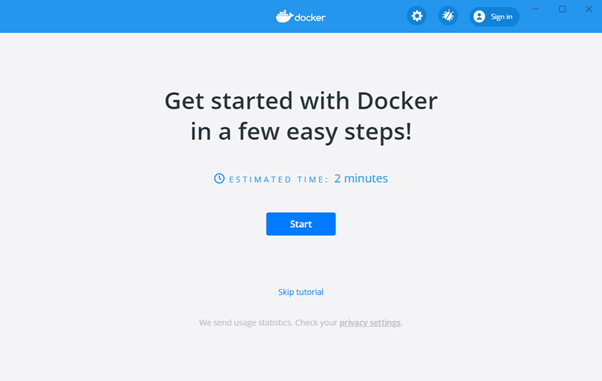
Figure 1 - Docker Desktop Installer
Make sure your system meets the minimum requirements.
● 64 - bit processor with Second Level Address Translation (SLAT)
● 4GB system RAM
● BIOS-level hardware virtualization support must be enabled in the BIOS settings. The status can be
checked in your Task Manger:
If you choose Hyper-V make sure visualization is enabled. If Visualization is not enabled, you will have to turn it on in your BIOS. If you don ́t know how: Here is a very good step-by-step tutorial.
After installing make sure docker is running. On a typical installation the Docker daemon is started by a system utility, not manually by a user. This makes it easier to automatically start Docker when the machine reboots. The command to start Docker depends on your operating system. Check the correct page under Install Docker.
Start the Pro Edition for Eclipse Mosquitto Setup
Download the shared setup via our platform. You either have access through our trial or through a valid subscription to an on-premises plan. A trial license gives full access to all features. The downloaded setup has set reasonable default configurations and can be started without further changes. If you already know, which changes you want to make, you can do so now.
If you have downloaded your setup via the Cedalo Platfrom, the license file, named "license.lic," is already included and can be found at ./license/license.lic.
If not, please manually add your license file.
To start Pro Edition for Eclipse Mosquitto and the Cedalo MQTT Platform, navigate to the setup folder using the terminal and run the following command:
docker compose up -d
For older versions of Docker, Docker Compose is installed separately and is invoked using docker-compose instead of docker compose.
In-between Docker Desktop can warn you about file-sharing. File-sharing is intended by Cedalo. The Docker container would otherwise not be able to access certain files from the platform configuration that are stored in a regular Windows folder. Make sure to allow this access.
Check Status
During installation, a Docker environment will be created for Pro Edition for Eclipse Mosquitto, consisting of two containers: one for Mosquitto and another for the Management Center (Cedalo MQTT Platform). To verify that both containers are running, use the following command:
docker ps
You should see both the Mosquitto broker and the Cedalo MQTT platform listed as running.
For more detailed information, you can check the logs of the containers. To view the logs, run the following command from the root directory:
docker-compose logs
Access the Cedalo MQTT Platform
By default, the test setup is accessible only on localhost, with MQTT port 1883 and HTTP port 3000 bound to the local machine. If you need external access to this setup, adjust the port configuration in the docker-compose.yml file accordingly.
To access the Management Center UI for your initial broker setup, go to http://localhost:3000/. You will be prompted to create your admin credentials when you first log in.
If you're using the Enterprise version of the Cedalo Platform, you can configure additional users within each project's settings.
Connect a client
To connect your first client to the Pro Edition for Eclipse Mosquitto broker, create a new client account and assign it a role. For full permissions to publish and subscribe, choose the role "client". For a detailed walkthrough of this process, please refer to our Onboarding Guide.
To connect to your Mosquitto instance, use the address localhost:1883 and the credentials you set up during the client account creation.
If you need to enable anonymous access, add the following line to your mosquitto.conf file under the listener configuration:
allow_anonymous true
Example Docker Compose
Image names in our default setups and this example always pull the latest patch for each minor release. For instance, 3.0 will automatically pull 3.0.x based on the available patch version.
services:
  mosquitto:
    image: registry.cedalo.com/mosquitto/mosquitto:3.0
    ports:
      - 1883:1883 # MQTT no TLS
      - 8883:8883 # MQTT with TLS (needs to be configured in mosquitto.conf)
      - 8090:8090 # Websocket no TLS (needs to be configured in mosquitto.conf)
    networks:
      - cedalo-platform
    environment:
      CEDALO_LICENSE_FILE: /mosquitto/license/license.lic
    volumes:
      - ./mosquitto/config:/mosquitto/config
      - ./mosquitto/data:/mosquitto/data
      - ./license:/mosquitto/license/
  platform:
    image: registry.cedalo.com/platform/enterprise:3.0
    # image registry.cedalo.com/platform/business:3.0  // Enterprise images only run with an enterprise license. Choose the right image for your license.
    platform: linux/amd64
    ports:
      - 3000:3000
    expose:
      - 3000
    depends_on:
      - mosquitto
    networks:
      - cedalo-platform
    environment:
      API_INTERNAL_HOST: platform
      BASE_URL: http://localhost:3000
      NEXTAUTH_URL: http://localhost:3000
      MOSQUITTO_PLATFORM_LICENSE_FILE: /platform/license/license.lic
      AUTH_SECRET: Efe9QCR1ViHDrGMv
      SETUP_TYPE: single

    volumes:
      - ./platform/data:/data
      - ./license:/platform/license/
      # map unix socket for audit trail:
      # - /dev/log:/dev/log
networks:
  cedalo-platform:
    name: cedalo-platform
    driver: bridge